Introduction
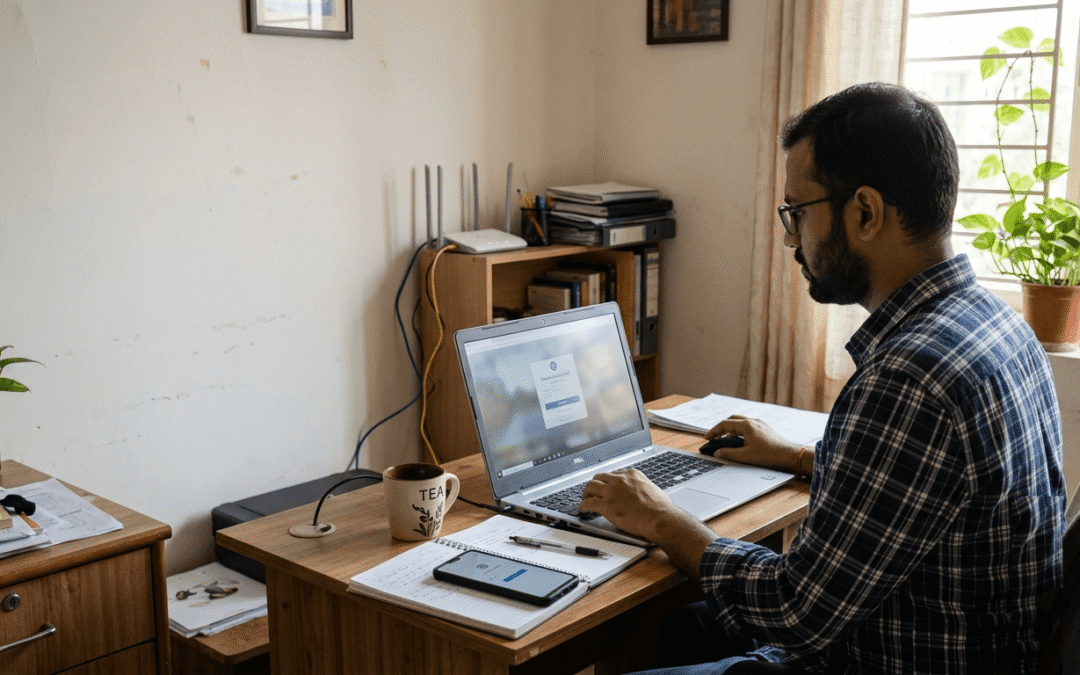
Remote work gives employees flexibility and helps small businesses operate from different locations. However, every remote connection can create security risks when employees use weak passwords, unmanaged devices or poorly configured access tools.
Secure remote access for small businesses allows employees to connect to company systems while the business controls who connects, which devices they use and what information they can access.
For example, an employee may need email and cloud applications, while an IT administrator may need to manage company servers. Therefore, give each user permissions that match their responsibilities.
Businesses need a practical remote access process that protects company information without making everyday work unnecessarily difficult.
In this guide, you will learn how to secure remote connections, protect employee devices, manage user permissions and review access regularly.
What Is Secure Remote Access?
Secure remote access allows employees, contractors and authorised IT staff to connect to company resources from outside the office through approved, protected connections.
These resources may include:
-
Business email and productivity applications
-
Company files and internal applications
-
Cloud platforms and business software
-
Office computers and servers
-
Network devices and administrative systems
To support remote work, businesses can combine virtual private networks (VPNs), identity-based access controls, multi-factor authentication (MFA) and remote desktop tools.
However, no single tool protects every connection. Instead, combine identity verification, device security, access restrictions and activity monitoring.
Why Does Remote Access Need Security Controls?
Remote access can expose business systems to unauthorised users when companies rely on weak controls or overlook account management.
Here are five common risks and the steps you can take to address them.
1. Stolen or Reused Passwords
Attackers may use stolen passwords to access business email, cloud applications or remote access services. Employees who reuse passwords across multiple websites increase this risk.
Therefore, require unique passwords and enable MFA wherever the service supports it. Whenever possible, encourage employees to use a password manager and phishing-resistant authentication methods.
2. Unsecured or Outdated Devices
Personal laptops and older company computers may lack current security updates, endpoint protection or essential device controls.
For this reason, establish minimum security requirements before allowing a device to access sensitive business systems. Also, ask employees to install updates promptly and report lost or stolen devices.
3. Excessive User Permissions
Some employees retain access to files, applications or administrative tools they no longer need.
Instead, assign permissions according to each employee’s current responsibilities. Review those permissions whenever employees change roles or leave the organisation.
4. Uncontrolled Remote Administration
Remote desktop software and administrative tools give users powerful access to company systems. Attackers who compromise these tools or their accounts may gain control of important resources.
Consequently, restrict administrative access to authorised users, require MFA for privileged accounts and review remote administration activity regularly.
5. Delayed Employee Offboarding
When an employee leaves, the organisation must remove their access to company systems promptly. Otherwise, old accounts may create unnecessary security risks.
To prevent this problem, include remote access in your employee offboarding checklist. Assign responsibility for disabling accounts, revoking permissions and recovering company devices.
Remote Access Security Checklist for Small Businesses
Use the following checklist to review your current setup. First, examine account security. Next, check devices, connections and user permissions.
1. Identify Every Remote Access Method
First, create an inventory of the tools employees and IT administrators use to connect remotely.
Include:
-
Company VPN services
-
Remote desktop applications
-
Cloud administration portals
-
Remote IT support tools
-
File-sharing platforms
-
Third-party vendor connections
Next, record who uses each tool, which systems it can access and who manages the account.
This inventory helps your IT team identify unused accounts, unapproved software and unnecessary access paths. In addition, it gives your business a clear starting point for future security reviews.
2. Enable Multi-Factor Authentication
MFA asks users to verify their identity with an additional factor beyond a password. For example, a service may request approval through an authenticator app or ask the user to connect a security key.
Enable MFA for:
-
Business email accounts
-
VPN accounts
-
Cloud administration portals
-
Remote desktop gateways
-
Password managers
-
Privileged IT accounts
Whenever possible, choose phishing-resistant methods, such as supported hardware security keys or passkeys. These methods provide stronger protection than passwords alone.
However, MFA does not replace other security controls. Your business must also manage device health, user permissions and suspicious sign-in activity.
3. Configure VPN Access Carefully
A VPN can encrypt traffic between a device and a VPN endpoint. It can also help businesses control access to internal network resources.
However, a VPN does not automatically protect a compromised device or prevent every cyberattack.
When configuring business VPN access:
-
Require strong authentication.
-
Give users access only to the systems they need.
-
Keep VPN software and gateways updated.
-
Remove inactive accounts.
-
Review connection logs for unusual activity.
-
Restrict administrative access to authorised personnel.
In addition, decide whether employees need access to the entire internal network or only specific applications and resources.
For example, an employee who needs one internal application may not need unrestricted access to servers, printers and network management interfaces. Limiting access reduces the number of systems that a compromised account could reach.
4. Secure Employee Devices
Remote access security depends on the devices employees use. Therefore, establish clear requirements for company-owned and approved personal devices.
At a minimum, ask employees to:
-
Install current operating system and application updates.
-
Enable endpoint protection.
-
Use a firewall where appropriate.
-
Set screen locks and use strong authentication.
-
Encrypt company laptops and other supported devices.
-
Remove unnecessary software and administrator privileges.
-
Report lost or stolen devices promptly.
Where practical, configure device management tools to enforce these requirements and verify device compliance.
For example, your organisation can require supported security updates before a device connects to sensitive business applications. As a result, your IT team can reduce the risk of outdated devices accessing company resources.
5. Apply the Principle of Least Privilege
The principle of least privilege means giving each user only the access they need to perform their work.
For example, a finance employee may need accounting software and financial reports but not server administration tools.
To apply this principle:
-
List the applications and resources each role requires.
-
Assign access according to job responsibilities.
-
Separate standard user accounts from privileged administrator accounts.
-
Remove unnecessary permissions when employees change roles.
-
Review access regularly and correct excessive permissions.
As a result, a compromised account has fewer opportunities to expose unrelated systems and information.
6. Control Remote Desktop and Administration Tools
Remote desktop and IT support tools help employees and technicians resolve problems from different locations. However, attackers may also target these tools to gain access to business computers.
Therefore, keep remote desktop services off the public internet unless your IT team has designed and secured the configuration carefully.
Instead:
-
Use an approved remote access gateway or VPN where appropriate.
-
Require MFA for remote administrative access.
-
Limit connections to authorised users and devices.
-
Keep remote access software updated.
-
Record administrative sessions where the tools support logging.
-
Remove tools that the business no longer needs.
Additionally, review remote support software regularly. Remove unauthorised applications and confirm that only approved technicians can start remote sessions.
7. Manage Third-Party and Vendor Access
External IT providers, software vendors and contractors may need remote access to maintain business systems. However, their access should not remain open indefinitely.
Before you grant a vendor access, identify the business purpose, specify the approved systems and set an access period.
Then:
-
Create individual accounts where possible.
-
Require MFA.
-
Grant only the permissions necessary for the task.
-
Set an expiry date or review date.
-
Monitor access to sensitive systems.
-
Remove access when the work ends.
This approach allows external specialists to complete their work without creating unnecessary long-term access risks. Moreover, individual accounts help your IT team identify who accessed a system and when.
Remote Access Offboarding Checklist
When employees leave, contractors change roles or vendor contracts end, review their access. Therefore, include remote access in your standard offboarding process.
Use this checklist when someone leaves or no longer needs remote access:
-
Disable or remove their VPN account.
-
Revoke remote desktop and remote support access.
-
Remove access to cloud applications and company email as appropriate.
-
Revoke active sessions and tokens where the service supports it.
-
Remove privileged permissions.
-
Recover company devices and security keys.
-
Transfer ownership of business files and accounts.
-
Review shared credentials and rotate them when necessary.
-
Record the completed actions.
For urgent departures or suspected security breaches, ask your IT and HR teams to remove access immediately.
Importantly, do not rely only on disabling an employee’s email account. Review every remote access service and application the employee could use. This extra step helps prevent old accounts from creating security gaps.
How to Create a Remote Access Security Policy
Give employees and administrators a written policy so they can follow the same security process. Keep the policy practical, clear and suitable for your organisation.
Next, define the following requirements in your policy.
Approved Access Tools
List the VPNs, remote desktop applications and support tools employees may use. Also, explain how employees can request approval for a new tool.
Authentication Requirements
Define password expectations and require MFA for remote access wherever possible. In addition, establish stronger controls for administrators and other privileged users.
Device Requirements
Explain which devices employees can use and which security controls they must follow.
For example, require supported operating system versions, endpoint protection, encryption and screen locks.
Access Approval
Identify who approves new access requests and who reviews existing permissions. Make sure each employee receives only the access their role requires.
Incident Reporting
Tell employees how to report suspicious login alerts, lost devices, unexpected MFA requests and unusual remote access activity.
Also, explain whom they should contact and what information they should provide when reporting a security concern.
Employee Offboarding
Define who disables accounts, removes permissions, recovers devices and records completion when someone leaves.
Finally, share the policy with employees and explain how they can get help when they encounter access problems.
How Often Should You Review Remote Access?
Regular reviews help your business identify unused accounts, outdated tools and unnecessary permissions.
Use this schedule as a starting point, and adjust it to your organisation’s risk level.
| Review activity | Suggested frequency |
|---|---|
| Check suspicious sign-in alerts | Regularly, with automated alerts where available |
| Review privileged accounts | At least monthly |
| Review general remote access permissions | Quarterly, or more frequently when risk requires |
| Check VPN and remote access software updates | Regularly and whenever critical security updates appear |
| Confirm vendor access requirements | When engagements change and during scheduled reviews |
| Review access after employee role changes | Whenever the role changes |
| Remove access after an employee or contractor leaves | Promptly as part of offboarding |
| Test the remote access policy | Periodically and after significant system changes |
These intervals provide practical starting points rather than universal compliance requirements. Therefore, follow any applicable contractual, regulatory or internal security requirements.
Warning Signs That Your Remote Access Needs Attention
Look for these signs when reviewing your environment:
-
Employees share accounts or passwords.
-
Staff use unapproved remote desktop tools.
-
Former employees still appear in access lists.
-
Administrators use the same account for everyday work and privileged tasks.
-
Your business cannot identify every remote access method.
-
Employees connect devices that do not meet basic security requirements.
-
Login alerts show unfamiliar locations or unexpected access times.
-
Vendor accounts remain active after projects end.
If you notice any of these issues, investigate them promptly. First, confirm whether the activity is legitimate. Then, restrict suspicious access, secure affected accounts and involve your IT or security provider when necessary.
Frequently Asked Questions
Is a VPN enough to secure remote access?
No. A VPN can protect network traffic between a device and a VPN endpoint, but it does not guarantee that the device, account or destination system is secure. Combine VPN access with MFA, device protection, least-privilege permissions and monitoring.
Do small businesses need MFA for remote employees?
Yes. MFA adds another layer of identity verification and reduces the risk that a stolen password alone will provide access. Prioritise email, VPNs, cloud applications and administrator accounts.
How can a small business secure Microsoft 365 remote access?
Start by enabling MFA, reviewing administrator roles and removing unnecessary accounts. In addition, use the identity and device security controls available under your Microsoft subscription. Review sign-in activity and configure alerts for suspicious behaviour where your plan supports them.
Can employees use personal laptops for remote work?
They can, if your organisation permits personal devices and defines suitable security requirements. For example, require supported software, device encryption, endpoint protection and screen locks. However, restrict access to sensitive systems when a device cannot meet your security requirements.
What should a business do when a remote employee leaves?
Disable the employee’s accounts and remove access to VPNs, remote desktop tools, cloud applications and other business systems. Also, revoke active sessions where possible, recover company devices and review shared credentials.
How often should a business review remote access permissions?
Review privileged accounts more frequently than general accounts. A monthly privileged-account review and quarterly general-access review can provide a useful starting point. However, review access immediately after role changes, departures or security incidents.
Can a small business manage remote access without a full-time IT team?
Yes, but the business still needs clear ownership and a consistent process. A managed IT provider can configure access controls, maintain devices, review permissions and investigate suspicious activity for your business.
How FineITServ Can Help
Remote access security involves more than installing a VPN. Businesses also need reliable device management, account controls, permission reviews and a clear process for handling security issues.
FineITServ helps businesses address IT support and infrastructure needs, including troubleshooting, device support and related IT services.
If your organisation needs help reviewing remote access, identifying security gaps or improving its IT support process, contact FineITServ to discuss your requirements.
Explore our services: IT Field Services
Need help with your business IT? Contact FineITServ
Final Takeaway
Secure remote access starts with knowing who connects to your systems, which devices they use and what information they can reach.
First, enable MFA and approve the tools employees use. Next, secure devices, limit permissions and monitor remote connections. Finally, review access regularly and remove access promptly when employees or vendors no longer need it.
With these practical controls, small businesses can support remote work while reducing avoidable security risks.
Editorial note: Review these recommendations against your organisation’s actual systems, security requirements and applicable policies before implementation.